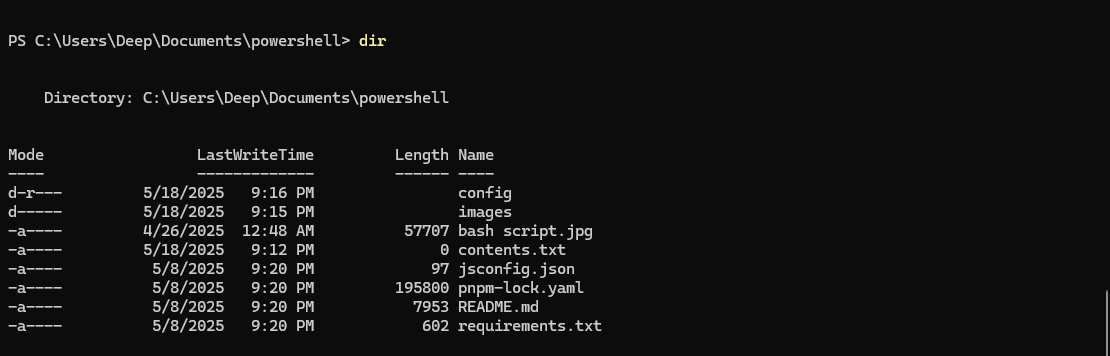
Powershell is a useful skill to have at the workplace and at home, and learning a handful of PowerShell commands can make your life a lot easier. A few years ago I didn’t use it much, especially at work because I was not too comfortable with it. I was more comfortable in just using the command-line. I Eventually, started playing around with it and I noticed that PowerShell also had a lot of the commands from LINUX built in. An example of a command is the ls command, which is the same as the dir command in Windows.
Powershell Terminology
The dir command was only used in Windows, and never Linux. In Linux the command ls is used instead. They both list the directory structure. PowerShell uses get-childitem for the same command. While both commands may have their separate options, their basic output was the same. The creators for get-childitem cmdlet added an alias that allowed you to use either ‘dir’, or ‘ls’, and it would interpret it as running the ‘get-childitem’ command. Therefor the output is the same. Although this article isn’t going to teach you the basics of PowerShell, it is important to understand that everything returned to a PowerShell command is an object. Which really means, we can do a lot more with the data returned — it isn’t just a string. We can pass what we are returned, to another PowerShell command.
Over the last few years, I ended up using PowerShell a lot to manipulate and move files – especially at work. I have even used it for creating a GUI for the application! Here I will list some important commands I used (almost daily), and define what they do. I will also use important options for each command and define them as I use them. As far as powershell goes, you need to at least know the basic functionality. I will try to elaborate on newer concepts but please remember, this is not an article for complete newbies — having basic understanding of most any programming language should suffice.
Get-ChildItem
Get-childitem may be the most used command (cmdlet) that PowerShell has for viewing and manipulating files. It allows you to view the contents in the current directory:
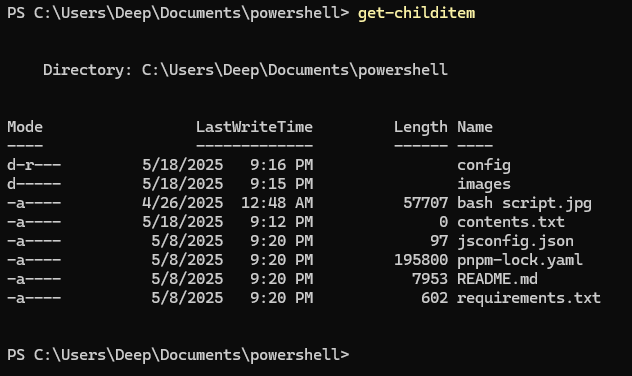
Now, if you run the command dir or the command ls, you will get the same exact output, because (as stated earlier) ‘get-childitem’ is just another way of typing dir in windows or ls in Linux. But this article isn’t about Windows, or Linux, but for both — you can install powershell on most any Linux or Windows machine. Matter of fact: if you’re running Windows, you probably already have it.
Powershell Version
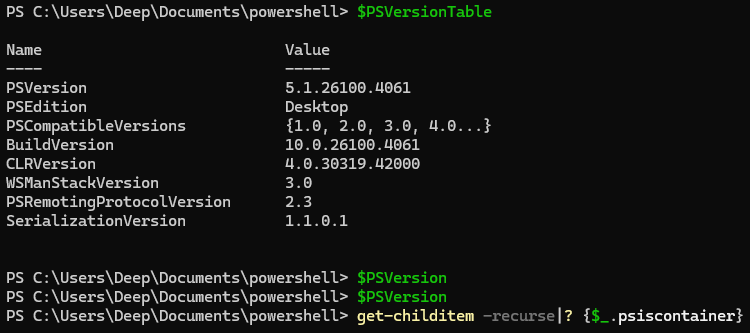
To see if you have it, go into the terminal or command line, and type in $PSVersionTable
Here is an image of the output:
Most of our commands or scripts will generally start with Get-childitem, because it give us a list of files plus the directory. We can filter them further by taking the input and piping it to another command. For instance the command Where (?) and the command For-Each (%). For example, if we want to return only folders, we can alter the command and send our output as input to the command with the pipe character(|):
get-childitem -recurse | for-each {$_.psiscontainer}
We can also write the same command as:
get-childitem -recurse | ? {$_.psiscontainer}
Briefly, this returns:
config
images
What this command is doing is, running the get-childitem command and passing each item as an object, allowing you to refer to its properties with the next command. So then, the for-each command, first PowerShell checks if it’s a file or a folder. If it’s a folder (isContainer), it will return it in the output, or next command after the pipe, otherwise discard it. By default, PowerShell outputs the final command to the terminal window.
We can also use the command for some important tasks. Lets say you need to get the count of file extensions and sort by count.
get-childitem -recurse|? {! $_.psiscontainer} | group extension -noelement| sort count -desc
This will output the following:
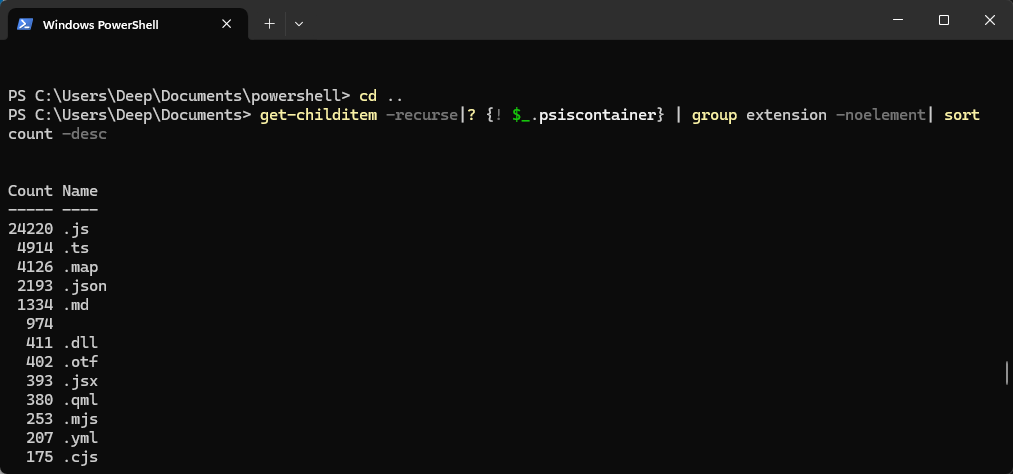
As you can see, it listed the count, and file extension for each of the extensions. This can be useful when you need to view all the natives, or do a count of images.
Get Sum of all files in folder
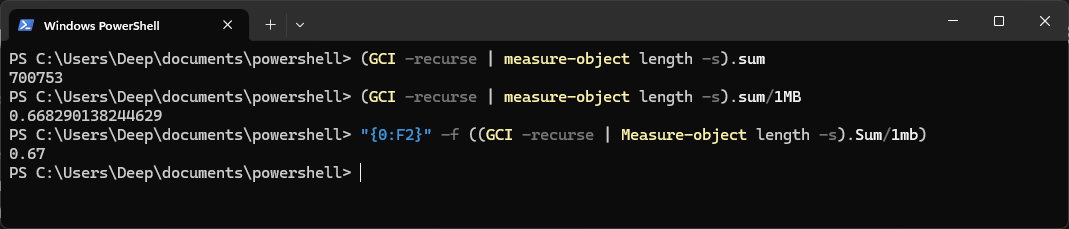
(GCI -recurse | measure-object length -s).sum
The above code should give you the size of the folder in bytes, however if you want to show the size in MB, or GB, you can add divide the result by 1MB, or 1GB, respectively. To format this even more, you can have Powershell display the output with 2 decimal places:
"{0:F2}" -f ((GCI -recurse | Measure-object length -s).Sum/1mb)
The results can be seen here:
Get listing of files & export list to current working directory:
PS > get-childitem –recurse | format-table name, directory >> listing.txt
The above code get a listing of all the files in the current powershell directory, and appends the the output into a filename listing.txt.
Get listing of a certain file type
Sometimes you may need to just work with a set of files with a certain type of extension. Let’s say we have a directory with a bunch of files, and we wish only to retrieve the Microsoft Excel files. For this instance, let’s say all the files have a extension of either xls or xlsx.
get-childitem [source] –recurse | where {$_.extension –eq “.xlsx” –or $_.extension eq “.xls”} | format-table directory, name > excelsNativesOnly.txt
The above code uses the where operator to find files with extensions xlsx or xls. Afterwards it uses format-table to grab the properties directory and name. Finally it exports those to a new file named excelsNativesOnly.txt.
Search for a specific string inside multiple files
Get-childitem –recurse | select-string –pattern “SECTO_0” | group path | select name
The above command will print out the path of the file, including the name of the file that contains the word “SECTO_0”.
Combine multiple txt/dat files into 1
For eDiscovery, let’s say you have multiple .dat files that you wish to combine. All the .dat files reside in the same folder and are named LTC001.dat, LTC002.dat, LTC003.dat, etc. You can manually open each file, copy and paste the data to merge them, however you could also do this automatically in Powershell:
get-content "LTC*.dat" | out-file -append "combinedDat.txt"
This will go through each file beginning with prefix LTC and combine them in a file called combinedDat.txt, and do it much faster. This can be very useful in cases where there are multiple concordance load files for one data load. It’s also useful in aspects other than eDiscovery.
There are many many other Powershell Commands we can utilize in daily system admin duties as well as eDiscovery. These are just some of my simpler commands.
MORE COMING…
Conclusion
As you can see, PowerShell commands are very useful in daily file manipulation and can help save a lot of time. I know personally because I did not start using PowerShell until about a year into previous role at work. Once I did, I was able to speed up so many tasks — it definitely improves me workflow. Advancing my skills allowed me to find more unique and useful ways to approach problems using PowerShell. I have created multiple PowerShell scripts to take care of more advance data/file manipulation as well. Perhaps I will save that for another article.


0 Comments