I wanted to setup XRDP on a Linux Mint machine so that I can access it from other network computers. In order to do this, I finally fixed my old Dell XPS400 desktop by grabbing a couple of spare parts from the multiple non-working computers we were getting ready to recycle. The XPS400 came with Windows, however I decided to install Linux Mint Cinnamon. Mint has a low bar when it comes to hardware requirements when compared to Windows. After Installing, I needed to setup Remote Desktop access.
Remote Desktop Protocol (RDP) is a secure network communication protocol, developed by Microsoft, that allows users to remotely access and control a computer from another device.
I have Remmina installed on my Kali machine, however I wanted to try something else, therefore I went with Mint Linux with XRDP.
XRDP provides a graphical login to remote machines using RDP (Microsoft Remote Desktop Protocol). — https://www.xrdp.org/
Here are the specs of my machine:
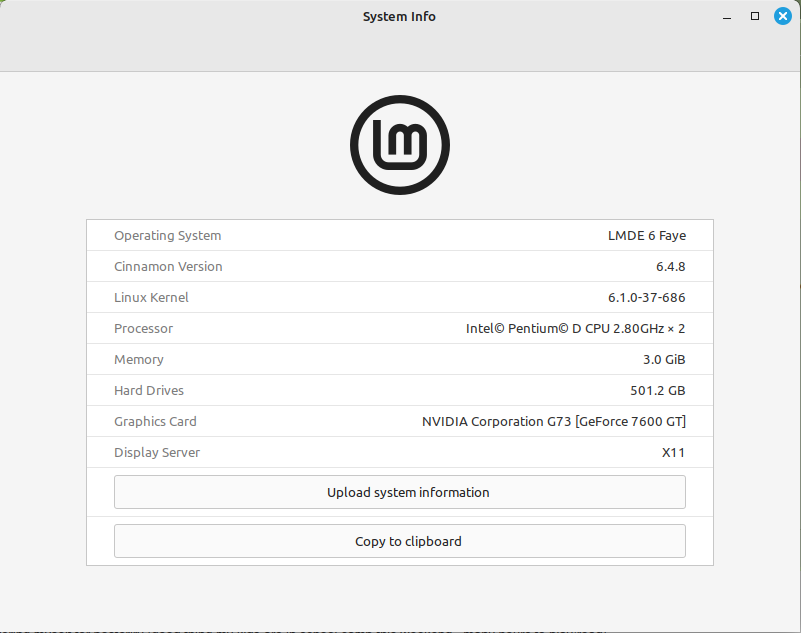
Many places online state to enable remote sharing via going to preferences and selecting Enable Desktop Sharing. I could not find this button anywhere. Further research confirms that the Enable Desktop Sharing button has been deprecated as of Linux Mint 19, rendering some RDP instructions useless. However, I found a way to setup XRDP on Linux Mint Cinnamon edition and I am going to show you how, using the terminal.
First, open up the terminal and type in the following command:
apt search xrdp
This should show you all the files that are relevant to XRDP:
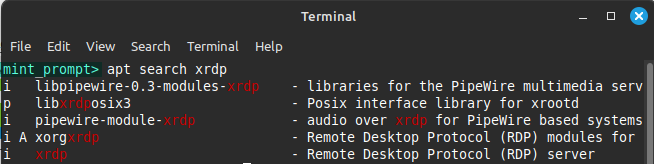
Next, you should see 4 packages that contain the word “xrdp”. To completely install XRDP on Linux Mint, we need to install just 3:
-
1. xrdp
2. libpipewire-0.3-modules-xrdp
3. pipewire-module-xrdp
To install these 3 packages, run the following in the terminal:
apt install xrdp libpipewire-0.3-modules-xrdp pipewire-module-xrdp
This should complete the installation of XRDP and bring you to a blank terminal prompt when complete. However, we are not completely done. Next, we need to create and update the .xclients file to tell XRDP on Linux Mint to use Cinnamon as the default desktop when logging in. To do this, run the following code in terminal:
echo "cinnamon" > ~/.xclients
chmod +x ~/.xclients
Finally, we need to restart the XRDP service, which should have started after installation. To do this, type the following:
systemctl restart xrdp
To connect to our Linux Mint desktop using RDP, we need the IP Address of the computer. You can obtain the IP address by typing the following in the terminal:
hostname -I
RDP using Windows
With the IP address of your Linux machine, you should now be able to access your Linux Mint computer from the network by launching Remote Desktop on Windows:
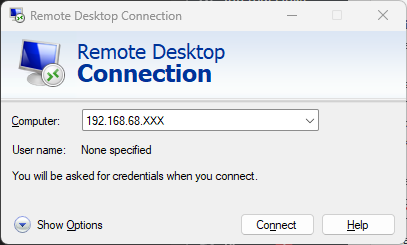
XRDP on Linux Mint Desktop:
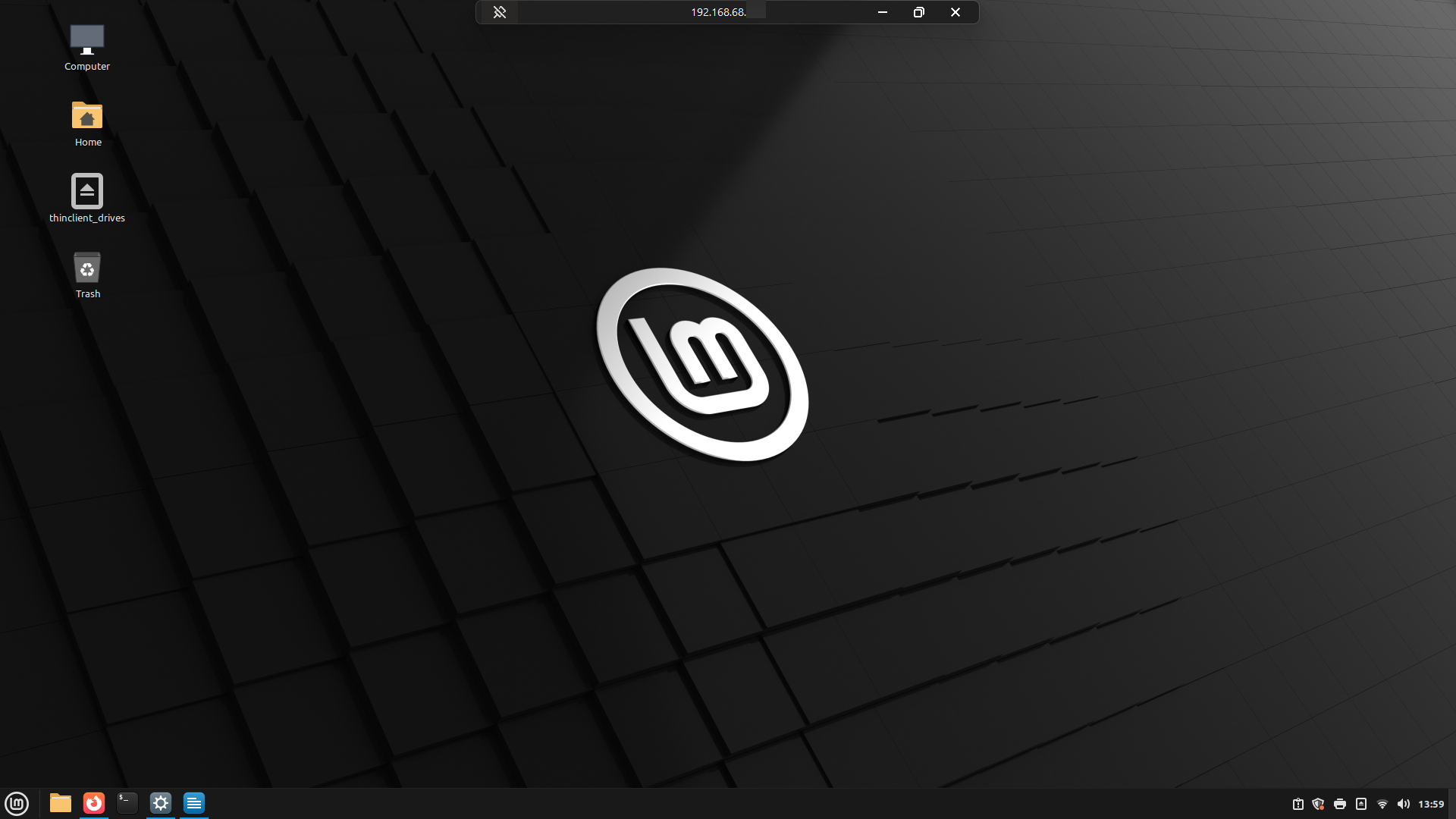
Error when connecting to Mint via RDP
Finally, you have setup XRDP to be able to communicate with your Linux Mint machine. This is great as you can now access your Mint Linux files through your Microsoft Windows machine. Matter-of-fact, you can do more than just access your files, you can use your Linux machine just as you are sitting on it.


0 Comments