What is Windhawk?
Windhawk  is a Windows 11 desktop customization tool. It enables you to modify your Windows appearance with the use of Windhawk Mods. Windhawk mods are basically “add-ons” that you can download individually to update a section of the Windows 11. These Windhawk Mods, include, but are not limited to a Start Menu styler, Taskbar customizer, as well as the UI’s behavior.
The one main thing about Windhawk is the option to only download the mods you need, whereas other apps my have you download the entire package. By allowing this, the user can be sure to only utilize necessary space. Further more, you are free to alter the code of the mods, and have them behave anyway you like. Here, I am going to show you a few of my favorite mods.
Here is a image of the default Windows 11 desktop:
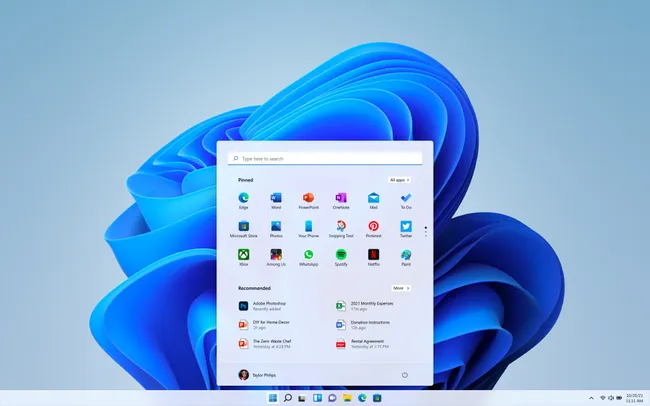 Windows 11 default desktop
Although it’s new and clean when you first upgrade, you quickly learn which features you like and don’t like. For example, someone may prefer the “Recommended” section in the Start Menu, where as others will not. If you want to change an appearance, most-likely, there is a Windhawk Mod available for it.
First, let’s download Windhawk from here. Or, you can open up the command line and use winget to download and install it:
winget install RamenSoftware.Windhawk
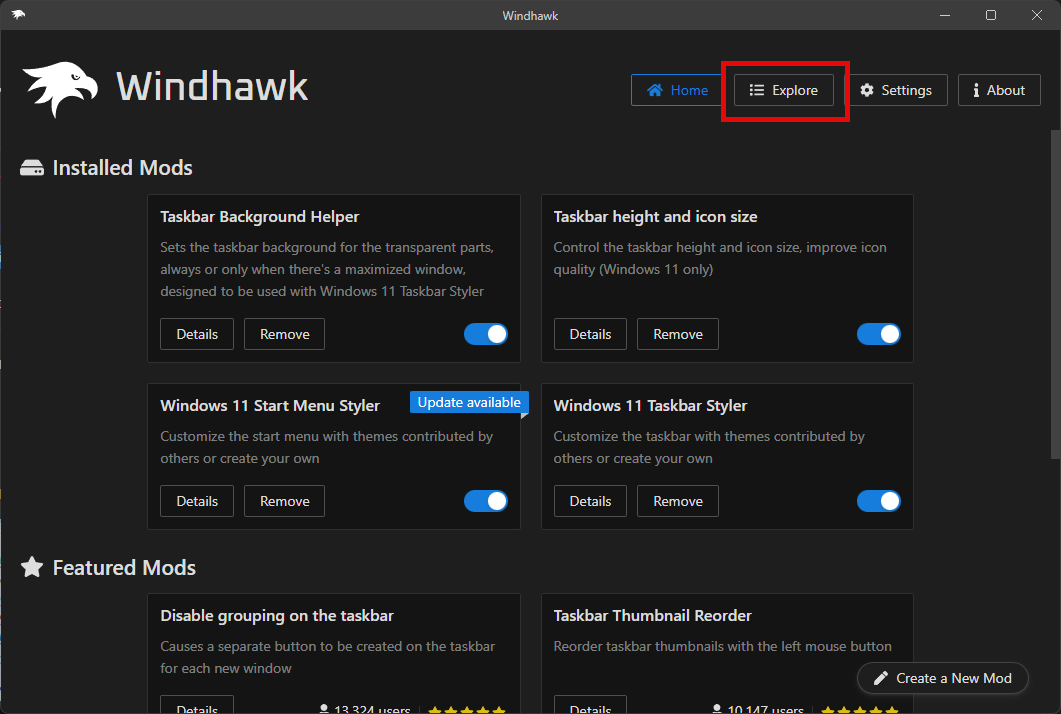
After installation, lets take a look at the available Windhawk Mods by navigating to https://windhawk.net/mods, or by launching the app and clicking “Explore”:
As you can see, there are hundreds of mods:
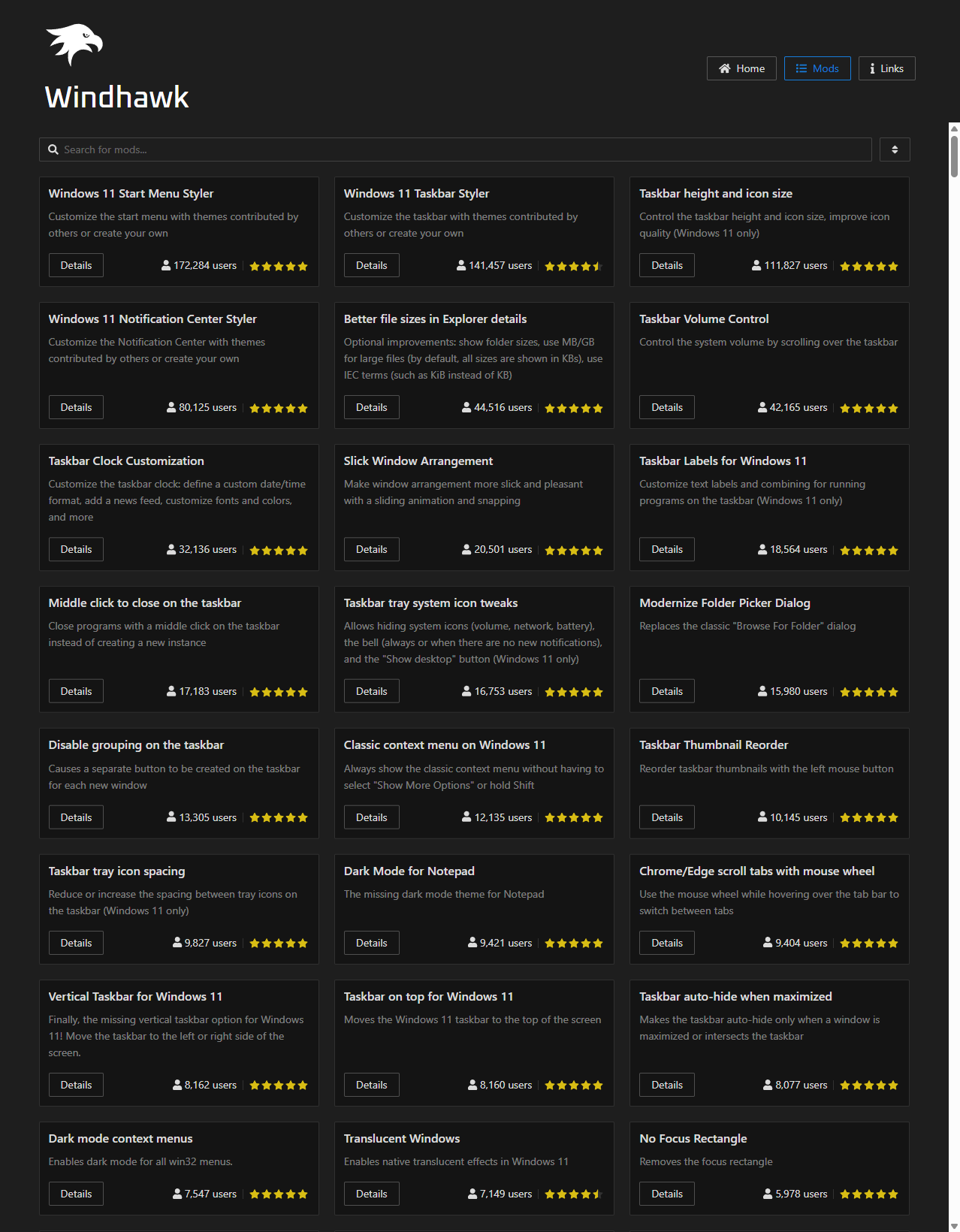 The list of Mods.
.
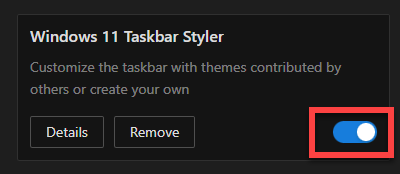
Let’s go through and install one of my favorite Winhawk Mod’s — Windows 11 Taskbar Styler. Find the Mod that is named “Windows 11 Taskbar Styler,” and click the “Install” button. After installation is complete, you should be able to enable the Windhawk Mod by sliding the toggle-switch to the right:
You can click the “Details” tab/button on all Mods for further information. In the “Details” tab, Windhawk should show you the “Themes” available for Windows 11 Taskbar Styler Mod, as well as provide any information that may be useful regarding that particular Mod:
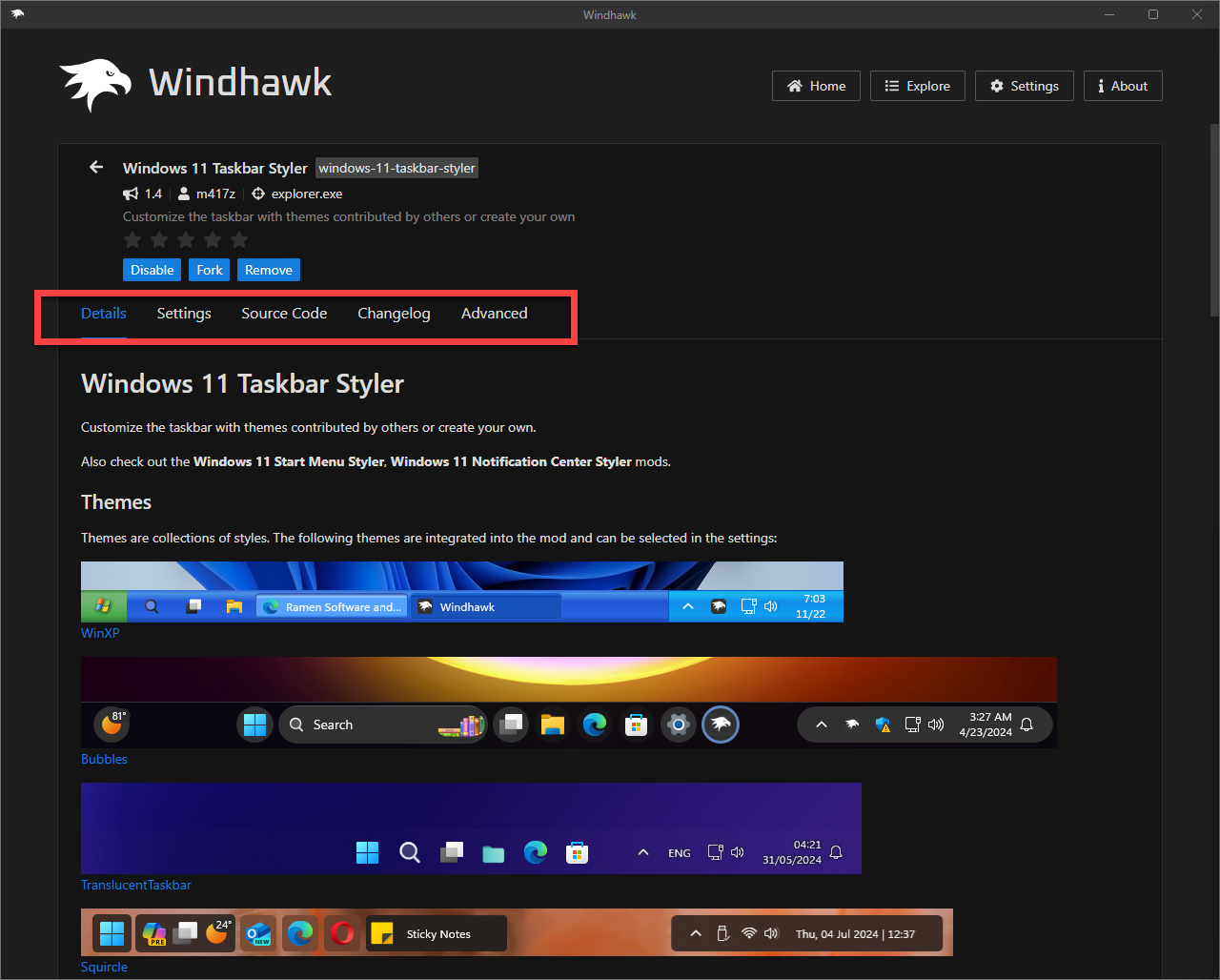 Tabs highlighted in red
As you can see above, a screenshot of the themes available for our taskbar are shown. Under the “Settings” tab, you can select the theme that you desire. For example, if you like the TaskbarXII theme, you can go to “Settings” and select it from the drop-down box. It is important that you read the information in the “Details” tab so you can get further information about that particular Windhawk Mod.
Another neat feature about Windhawk is that you can view the “Source Code” of the Windhawk Mod. Finally under the “Advanced” tab, you can easily import or export your Windhawk Mod settings. This is particularly helpful when you see a configuration that you like, you can import the settings file to replicate it.
Here is my current Windhawk Setup:
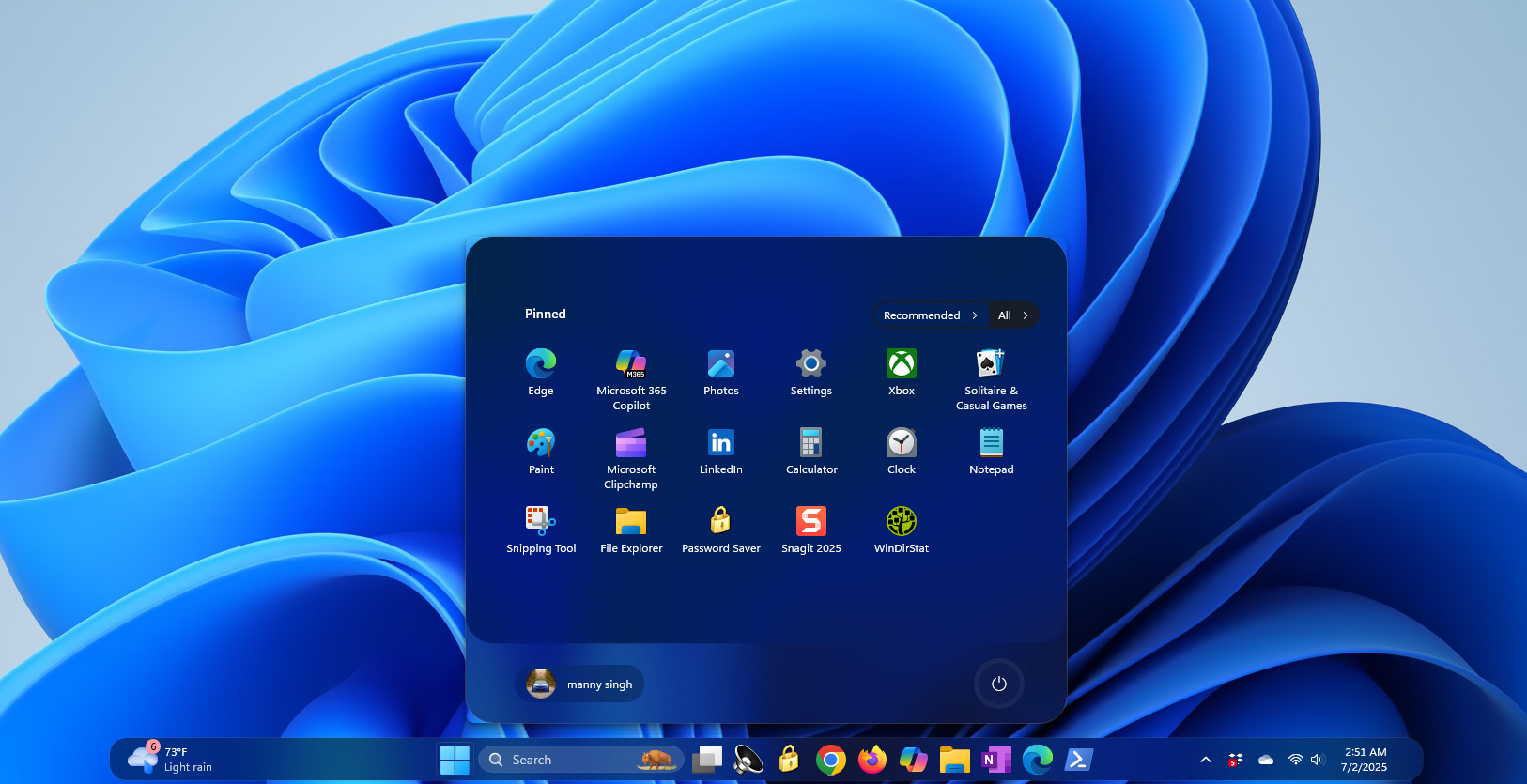 Windows 11 – Dark theme
And the day time light mode:
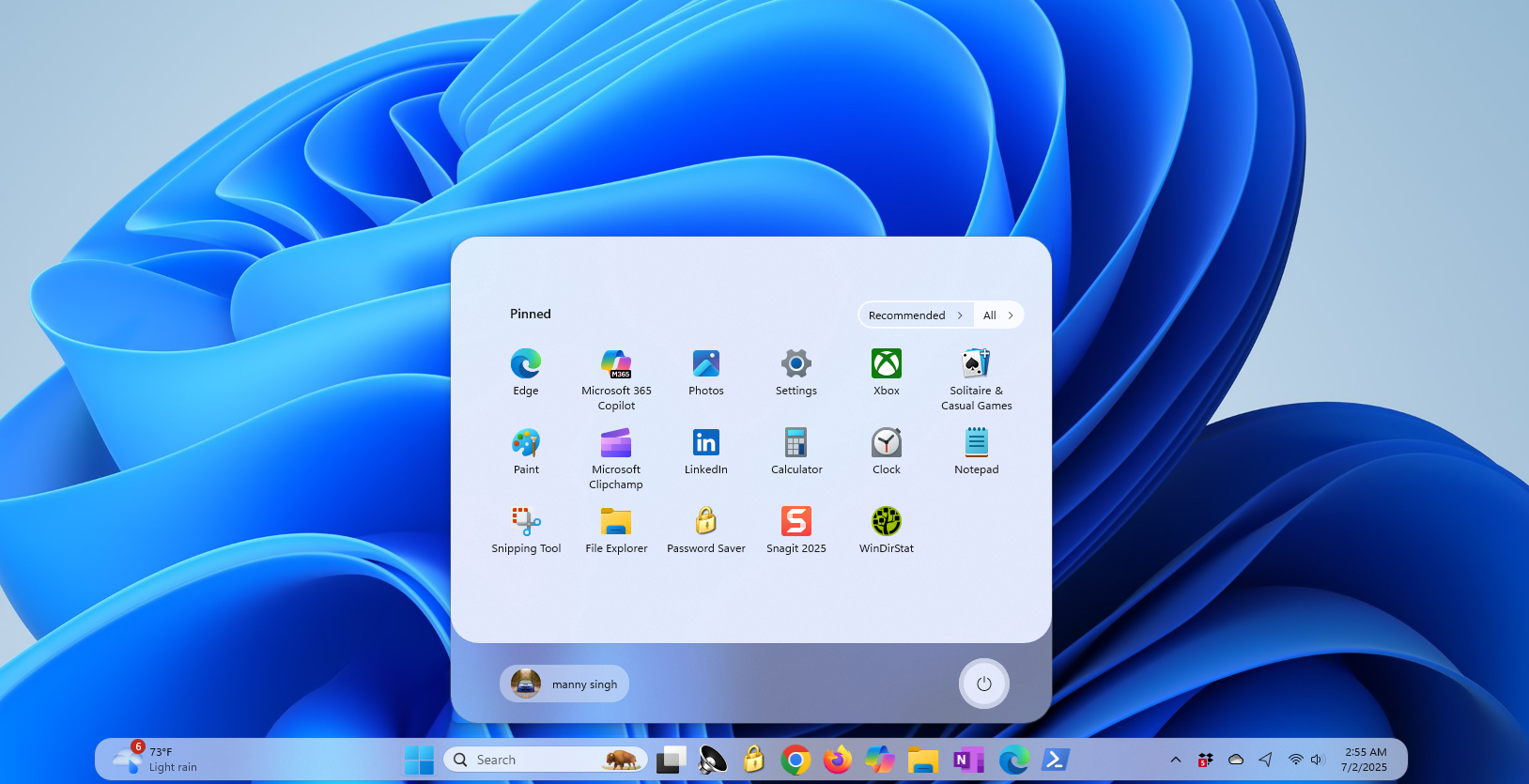 Windows 11 – Light Theme
I like how the taskbar is rounded off at the ends and does not span the entire bottom of the screen. Also, if you notice, the start button has a similar “rounded-corners” layout. I also went ahead and removed the “recommended” section completely from the Start menu. The layout looks a lot simpler and cleaner in my opinion. Below I will show you how I achieved this look — feel free to keep it as is or modify it to your liking.
WindHawk Mods required:
- 🅐 Windows 11 Taskbar Styler
- 🅑 Taskbar Background Helper
- 🅒 Windows 11 Start Menu Styler
- 🅓 Taskbar height and icon size
🅐 Windows 11 Taskbar Styler
For the Windows11 Taskbar Styler Mod, I didn’t select a pre-made theme. I went to the “Advanced” tab and wrote a custom code under “Mod Settings”. You can download the code here and load it into Windhawk by clicking “Load” and “Load Formatted”. You can also just copy and paste the code from the text file you just downloaded.
🅑 Taskbar Background Helper
All this Windhawk Mod will do is blur the background of the area that’s behind the task bar when another window, such as Chrome, is maximized. It gives it a cleaner look and doesn’t confuse the user as much. You can see the effect in the “Details” tab. For “Settings”, I left the “Background Style” to “Blur” but you can select a color if you want.
🅒 Windows 11 Start Menu Styler
As the name of this Windhawk Mod states, this mod will help us customize our start menu. For this mod, I selected the “Down Aero” for the theme, under “Settings”. It gets rid of the “Recommended” applications and round out the corners, amongst other button changes. It fits well with our custom task bar and provides a cleaner look.
🅓 Taskbar height and icon size
Finally, the last mod that we use lets us adjust the height of the taskbar as well as the icon size. While you can leave the defaults, if you’re happy with it, I prefer my icons to be slightly bigger. I selected 32 for Icon Size, 52 for the taskbar height, and left the Taskbar button width to the default of 44. Feel free to adjust the Icon size, Taskbar height, and Taskbar button width to your liking. I will leave these settings up to you to decide.
You should not have a desktop that looks much like mine. However, don’t stop there, feel free to play with the hundreds (and counting) mods available.


0 Comments